Global Unlock from the Software
1.0 Introduction
This section explains how to use the built-in Global Unlock feature via icons located on the home tab, allowing you to immediately unlock all doors or a designated group of doors, over multiple controllers and even over different hardware platforms.
This feature is included in all versions of Doors.NET and is supported with all controller types. When configured, all configured doors on the system will automatically unlock when the operator presses the Global Unlock icon. All the doors will re-lock again when the Normal button is pressed.

Note: Because of the delayed nature of a dial-up connection, situation manager, global lock and global unlock features are NOT supported when using a modem connection to a PXL network. These features are only available when using a serial or Ethernet connection.
2.0 Enabling Software Global Unlock
- Ensure you are logged on as a System Administrator.
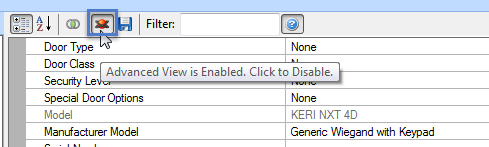
- Verify that Advanced View is enabled.
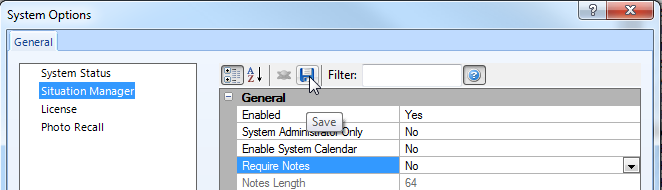
- Click on Setup >> System Options.

- Click on Situation Manager.
- Enable Situation Manager.

- Global Unlock Enabled will automatically be set to Yes.
- Ensure you have the following settings within the Global Configuration section.
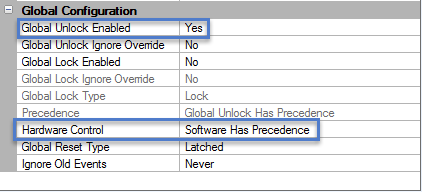
- Save the settings then close down the System Options window.
- Save the settings then close down the System Options window.
3.0 Activating the Global Unlock
- Go to the Home tab and you will now see two icons listed in the Situation Manager section:
- The icon highlighted in orange is the currently active global state of the system.
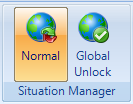
- You now have the ability to immediately unlock every door on the system simply by clicking the Global Unlock icon.
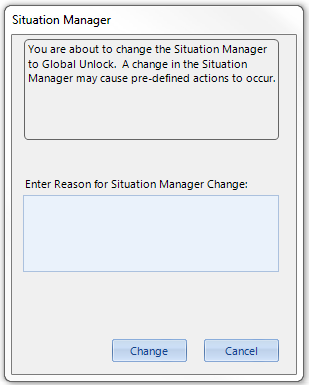
- When you click the Global Unlock icon a notification message will appear.
- Click the Change button and all doors will immediately unlock.
- You should see multiple door unlocked messages appear in the live events grid.
- Click on the Normal icon and all the doors will re-lock.
4.0 Configuring Doors to Ignore Global Unlock
You may want certain doors to always remain locked (or accessible only by a valid card) even in the event of an emergency. For example; store rooms or server/IT rooms. When doors are configured to ignore Global Unlock they will remained locked whilst the other doors globally unlock.
- In the hardware tree, click on a door you wish to ignore Global Unlock.
- In the reader/door properties, ensure Advanced View is enabled.
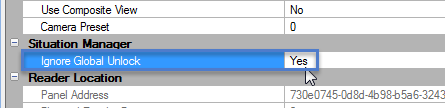
- Scroll down the list of properties until you locate Situation Manager.
- Set Ignore Global Unlock to Yes.
- Scroll down the list of properties until you locate Situation Manager.
- Set Ignore Global Unlock to Yes.
- Save your reader settings
 .
.
5.0 Using PXL Controllers
All hardware types, by default will automatically unlock via a Global Unlock command from the software, except for PXL controllers. To enable this feature on the PXLs you have to do the following:
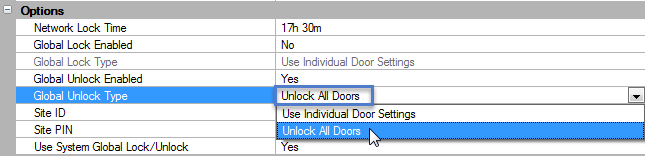
- Highlight the PXL Primary controller (#1).
- Locate Options.
- Set Global Unlock Enabled to Yes.
- Set Use System Global Lock/Unlock to Yes.
- Save
 .
.
Notes:
- When using the PXL controllers the doors will immediately unlock as a result of Global Unlock only if ALL doors are configured to unlock. If you program certain PXL doors to ignore Global Unlock you will experience a delay of up to 1 second between the unlocking of each door, which is not the desired behavior for many systems.
- Because of the delayed nature of a dial-up connection, situation manager, global lock and global unlock features are not supported when using a modem connection to a PXL network. These features are only available when using a serial or Ethernet connection.