Logging In
- To log in to Visual Doors, click the client icon located on the desktop.

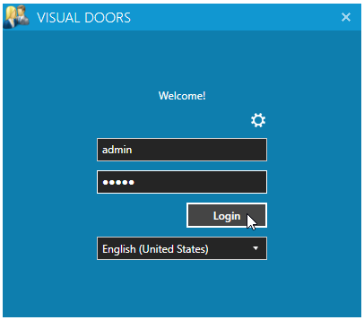
- The login window will appear.
- Enter admin as both the user name and the password.
- Click the LOGIN button.
Logging in from a Remote Location
If you will be logging into a Visual Doors Application Server from a remote client then you will need to know the static IP address of the host PC.
- To log in to Visual Doors, click the client icon located on the desktop.
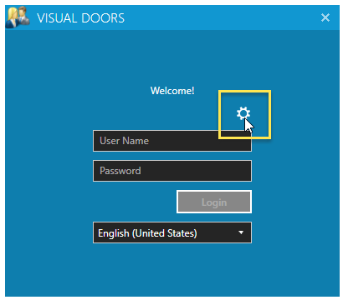
- The login window will appear.
- Click on the server parameters icon (the white cog).
- Enter the host IP address in the field highlighted below:
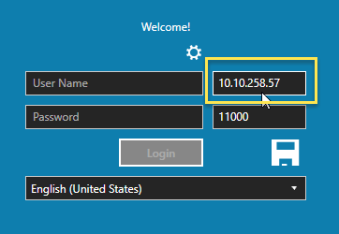
- Click on the save icon.
- Enter admin as both the user name and the password.
- Click the LOGIN button.